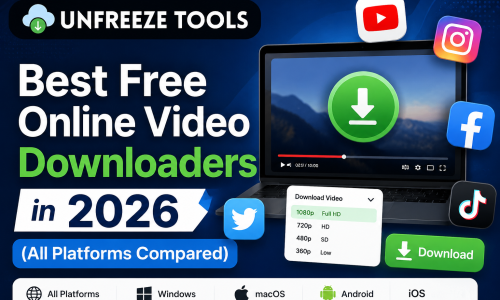




To save Instagram videos to your phone in 2026, copy the video link from the Instagram app. Tap the three dots on any post or Reel and select “Copy Link,” then paste it into the UnfreezeTools Instagram Video Downloader at unfreezetools.com/instagram-video-downloader/. The tool fetches the video in original HD quality and saves it directly to your device. Works for Reels, feed videos, and Stories from public accounts. No login required, no watermark added. Compatible with iPhone, Android, PC, and Mac.
Instagram has 2 billion monthly active users globally in 2026, and the single most frustrating thing about the platform is that it still has no native download button for most content. You can save your own Reels and Stories internally, but downloading any other video, a workout Reel, a recipe tutorial, or a travel video you want to watch offline, requires workarounds that most users do not know.
The methods that work in 2026 are fewer and more specific than guides written in 2022 or 2023. Instagram has closed several loopholes, apps that worked reliably have been delisted, and browser extensions have become less reliable as Instagram updates its obfuscation. This guide covers exactly what still works organized by content type and what has stopped working so you do not waste time on dead-end methods.
Why Instagram Does Not Have a Built-In Download Button
Instagram deliberately omits a download button for other users’ content because of copyright and content ownership concerns. When creators upload to Instagram, they grant Instagram a license to their content but they retain copyright. A universal download button would make redistribution trivially easy, creating legal and creator-trust problems for Meta. Instagram does allow downloading your own content (your own posts, Reels, and Stories) through native save features. For all other public content, third-party browser-based tools are the only practical option in 2026.
Instagram’s official position is that downloading other users’ content for redistribution violates both its Terms of Service and the creator’s intellectual property. What is not prohibited and is widely accepted is downloading public content for personal, offline, non-commercial use. Reading content offline on a flight, saving a recipe video to your camera roll for later, archiving a workout Reel for reference these uses are broadly accepted under fair use principles in most jurisdictions.
The practical rule: download for personal use, not for reposting as your own content. As long as you are saving content for your own reference and not claiming it as yours or monetizing it, you are in the accepted use case that the vast majority of Instagram video downloaders are built for.
How to Save Instagram Reels to Your Phone
To save an Instagram Reel to your phone, open the Reel in the Instagram app, tap the three-dot menu (···) in the bottom right, and select Copy Link. Then go to unfreezetools.com/instagram-video-downloader/ in your browser, paste the link, and tap Download. The Reel saves to your device in its original resolution typically 1080×1920 pixels at the 9:16 aspect ratio. No watermark is added. On iPhone, save directly to Photos. On Android, the file saves to your Downloads folder and is accessible from your gallery. The entire process takes under 30 seconds.
Step-by-step for saving Instagram Reels:
- Open the Reel in the Instagram app find it in your feed, the Reels tab, or on a creator’s profile
- Tap the three-dot menu (··…) in the bottom right corner of the Reel
- Tap Copy Link the Reel URL is now in your clipboard
- Open your browser and go to the Instagram Video Downloader
- Paste the link into the input field
- Tap Download the tool fetches the Reel and presents a download button
- Save the file on iPhone, tap and hold the video and select Save to Photos; on Android, tap Download to save to your gallery
Downloaded Reels retain their original 1080×1920 resolution. No watermark is added to the downloaded file. If the Reel has licensed audio, the audio may be muted in some cases this depends on the audio rights Meta has licensed, not on the downloader tool.
From experience: A fitness content creator I worked with was manually screen-recording workout Reels from competitor accounts for research losing quality every time and wasting 20+ minutes per session. Switching to the UnfreezeTools Instagram Video Downloader gave her clean HD files in seconds. She now has an organized reference library of 60+ technique Reels, all saved at original quality, that she reviews before filming her own content.
How to Save Instagram Stories to Your Phone
Saving Instagram Stories to your phone works differently from Reels because Stories are temporary they expire after 24 hours and their links behave differently. To save a Story from a public account, use the UnfreezeTools Instagram Story Viewer at unfreezetools.com/instagram-story-downloader/. Enter the public username, browse the live stories, and click the download button on any story you want to save. Stories download as MP4 video or JPG image files in original quality. This method only works for public accounts private account Stories require you to be an accepted follower, and no tool can access them externally.
Your own Stories can be saved directly from Instagram without any third-party tool: open your Story, tap the three-dot menu, and select Save Video or Save Story. This saves it to your camera roll at full quality with no extra steps.
For Stories from public accounts brands, creators, and public figures the Instagram Story Viewer on UnfreezeTools provides both anonymous viewing and direct download. Since Stories disappear after 24 hours, downloading them before expiry is essential if you want to keep the content.
How to Save Instagram Feed Videos and Posts
Instagram feed videos standalone video posts, not Reels are saved the same way as Reels using the Instagram Video Downloader. Tap the three dots on the post, copy the link, paste into the downloader, and download. Feed videos are typically in 4:5 portrait or 1:1 square format rather than the 9:16 Reel format. Carousel posts that mix photos and videos require downloading each slide separately paste the post link, and the downloader will show all available media from that post for individual download.
Instagram feed content by type and how to download each:
- Single video posts same process as Reels. Copy link → paste into Instagram Video Downloader → download
- Carousel posts paste the carousel link and the downloader surfaces all slides. Download each video or image individually
- IGTV videos Meta merged IGTV into regular video posts in 2023. They behave as standard video posts and download the same way
- Instagram Live replays available as video posts after the live ends. Download via the same Video Downloader method while the replay is live on the profile
Saving Instagram Videos on iPhone vs Android
The download process using UnfreezeTools is identical on iPhone and Android copy the link, paste into the tool, tap download. The difference is where the file saves. On iPhone, downloaded videos go to the Files app first; tap and hold to Save to Photos to move them to your camera roll. On Android, files save directly to the Downloads folder and appear in your gallery app automatically. Both iOS and Android support the download without any app installation the entire process runs in Safari or Chrome browser respectively.
From experience: A social media manager I advised was managing Instagram content research across both an iPhone for personal use and an Android work phone. She found the UnfreezeTools workflow identical on both devices same steps, same speed, same quality. The only difference was where the file landed after download. She now uses it as her standard tool across all devices and has recommended it to her entire team of five content researchers.
What You Cannot Download From Instagram
In 2026, you cannot download Instagram content from private accounts using any third-party tool the content is locked behind privacy settings and inaccessible from outside Instagram’s authenticated session. You also cannot download Close Friends Stories (shared only with a selected list), content that has been deleted before you attempt to download it, Stories that have already expired after 24 hours, or content from accounts that have blocked you. Any tool claiming to bypass private account restrictions is a scam or security risk.
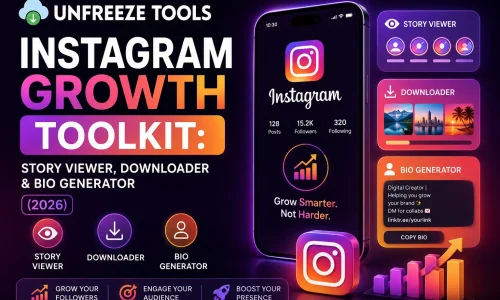
For Instagram’s official guidance on content ownership, privacy settings, and what the platform considers acceptable use, visit Instagram’s official Help Center. For all Instagram downloading and viewing tools in one place, explore the full Instagram toolkit on UnfreezeTools including the Instagram Story Viewer and Instagram Post Downloader in HD.
Frequently Asked Questions
Q: Does Instagram notify the creator when I download their video?
A: No. Instagram does not send any notification when a user downloads content from a public profile using a third-party tool. The creator’s view count may increase if the tool loads the video through Instagram’s public feed, but no download-specific notification is sent. This applies to Reels, feed videos, and public Stories downloaded via the UnfreezeTools Instagram Video Downloader.
Q: Can I download Instagram Reels without the watermark?
A: Yes. The UnfreezeTools Instagram Video Downloader downloads Reels in their original format without adding any watermark. Note that if the creator used TikTok’s watermark on a cross-posted video, that watermark is part of the original file and will be present it is from the original upload, not added by the downloader.
Q: Is it legal to download Instagram videos to my phone?
A: Downloading Instagram videos for personal, offline, non-commercial use is broadly accepted in most jurisdictions and is the intended use case for browser-based downloader tools. Reposting downloaded content as your own, using it commercially, or distributing it without the creator’s permission is not acceptable and may violate copyright law. Use downloaded content for personal reference, inspiration, and offline viewing.
Q: Why does my downloaded Instagram video have no sound?
A: Some Instagram videos use licensed music that Meta has rights to stream but not to enable download of. When this licensed audio cannot be included in a download, some tools omit it rather than include a restricted audio track. This is a rights management issue with the specific audio track, not a problem with the downloader tool. Original audio (creator’s voice, original music) downloads without issue.
Q: Can I download Instagram videos on my iPhone without installing an app?
A: Yes. The UnfreezeTools Instagram Video Downloader is entirely browser-based open Safari on your iPhone, go to the tool, paste your link, and download. No app installation required. The file saves to your Files app, from where you can save it to Photos with a single tap.
Save Any Instagram Video In Under 30 Seconds
Instagram’s lack of a native download button is a deliberate choice, but it does not have to be your limitation. For any public Reel, Story, or feed video you want to keep, the process is three steps: copy the link, paste it into the UnfreezeTools Instagram Video Downloader, and download to your device. No account, no watermark, no cost.
Explore the full Instagram toolkit for Story viewing, post downloading, and profile viewing tools. For saving videos from other platforms, explore the complete downloaders toolkit including Facebook, Pinterest, Twitter/X, and YouTube. All free. All instant. All no-login.